
01
Unlimited PDF export
Export polished PDFs as often as you need, without manual quotas or speed limits.
Export clean files for review, handoff, and archive without rebuilding the conversation by hand.
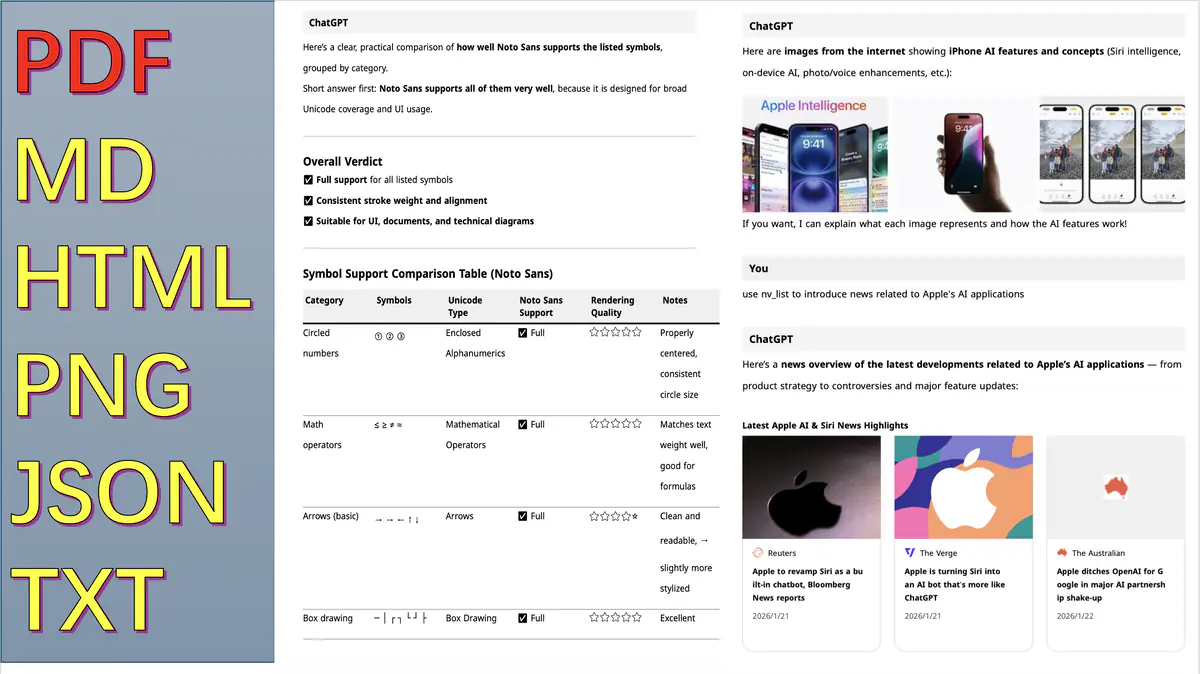
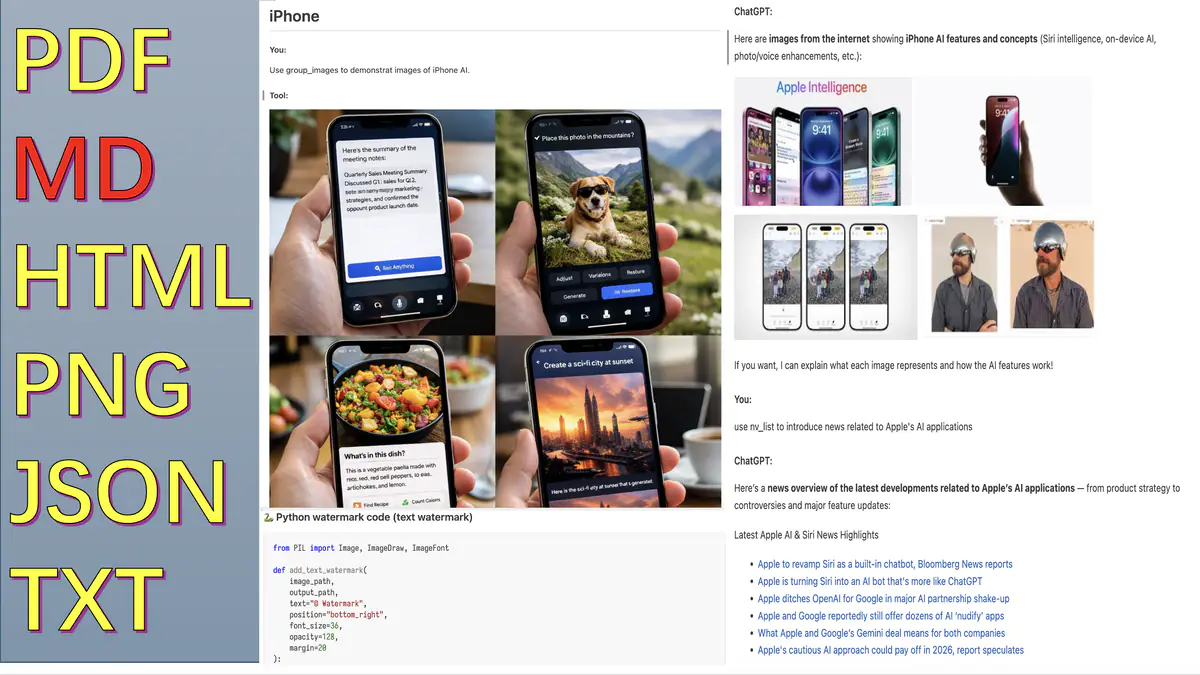
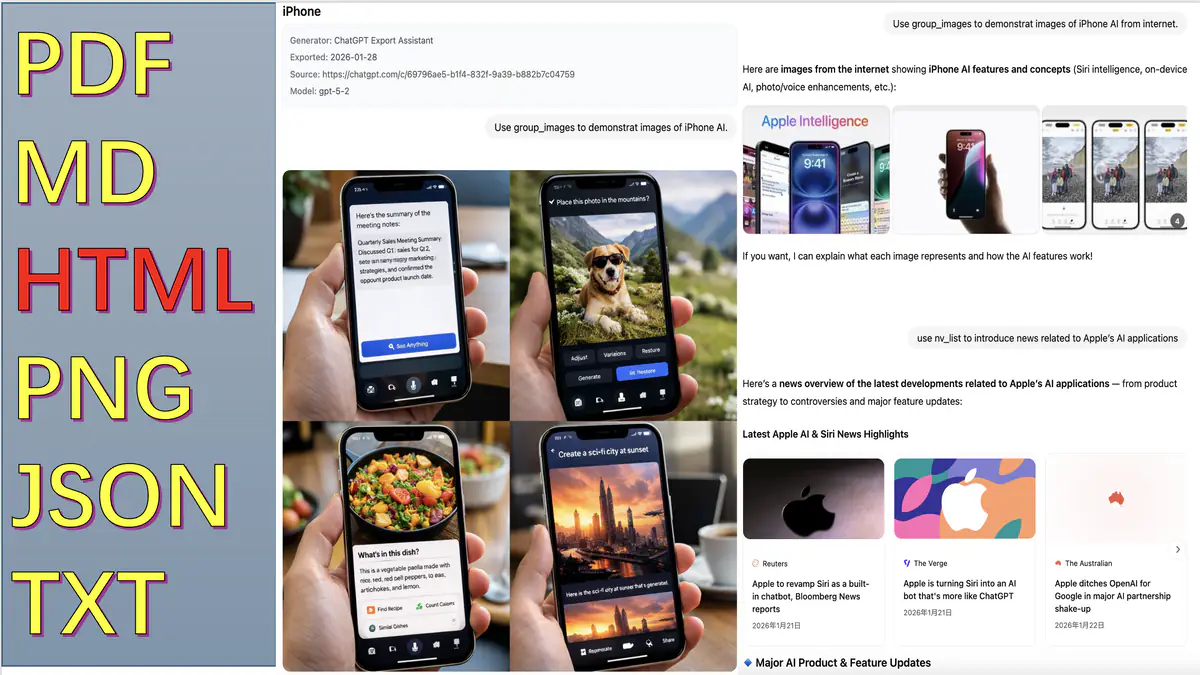

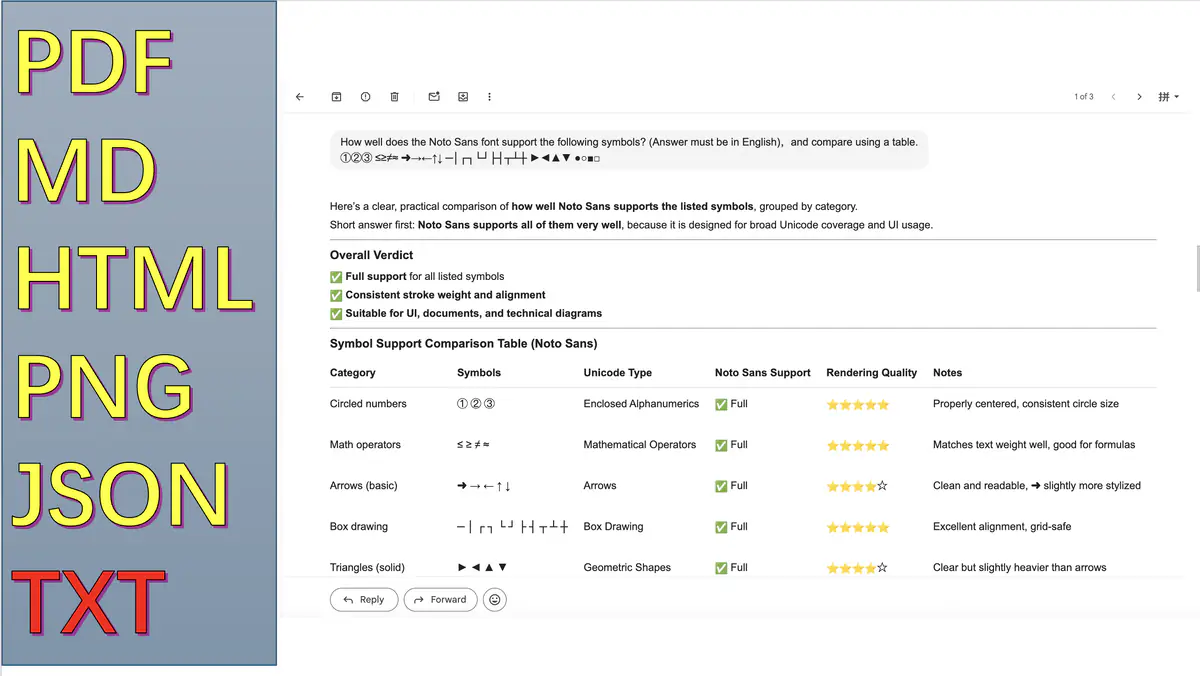
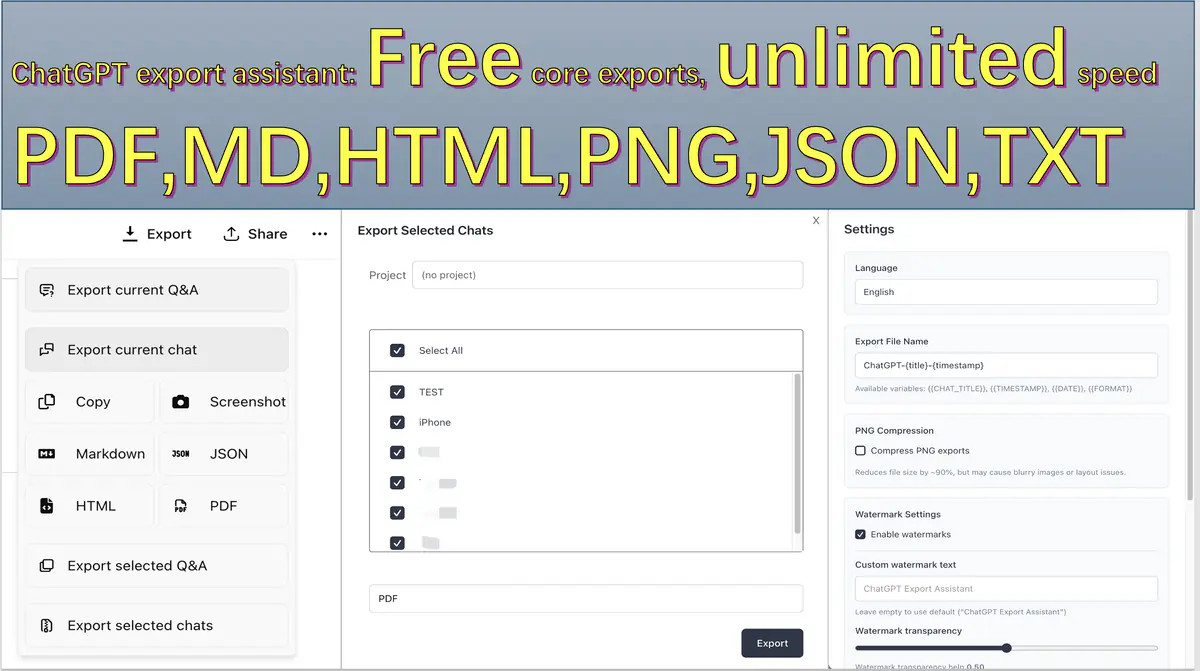
Generate polished PDFs without manual throttling, screenshot stitching, or cleanup before you send the file.
Export polished PDFs as often as you need, without manual quotas or speed limits.
Conversation rendering stays in the browser so export quality does not depend on a server-side pipeline.
Switch to HTML, Markdown, JSON, PNG, or TXT when the next tool in your workflow needs a different artifact.
Preview the output quality before export: readable layouts, stable structure, and assets you can hand off directly.
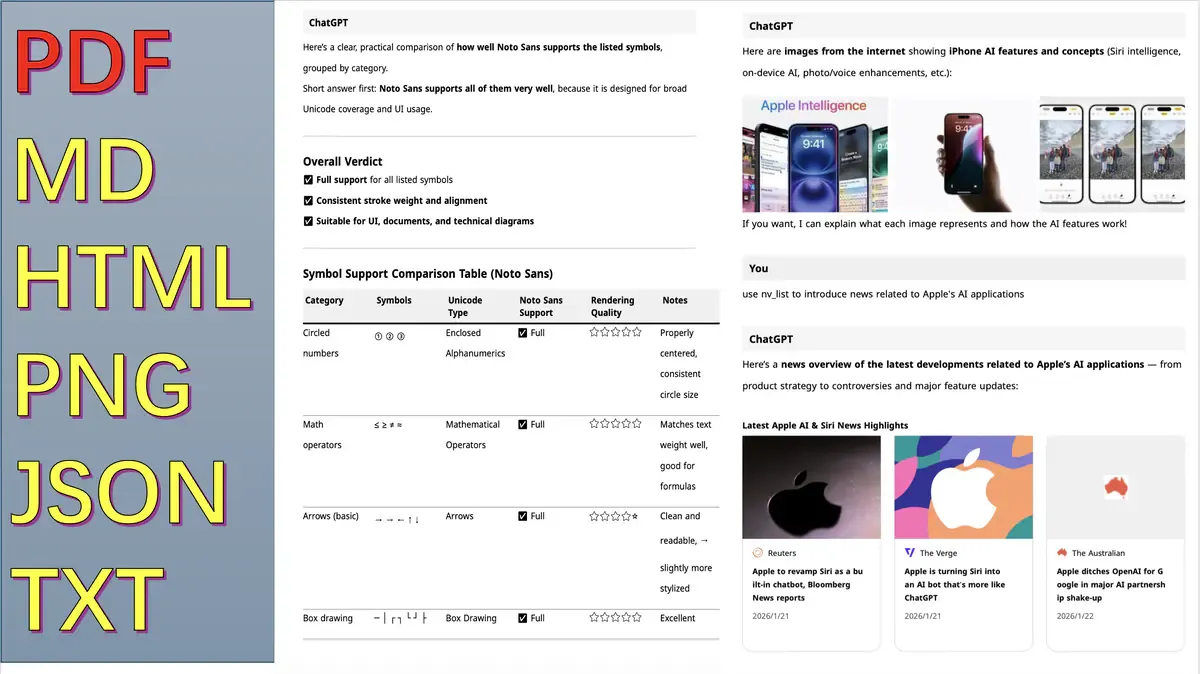
Pagination, spacing, and typography tuned for handoff and long-form archives.
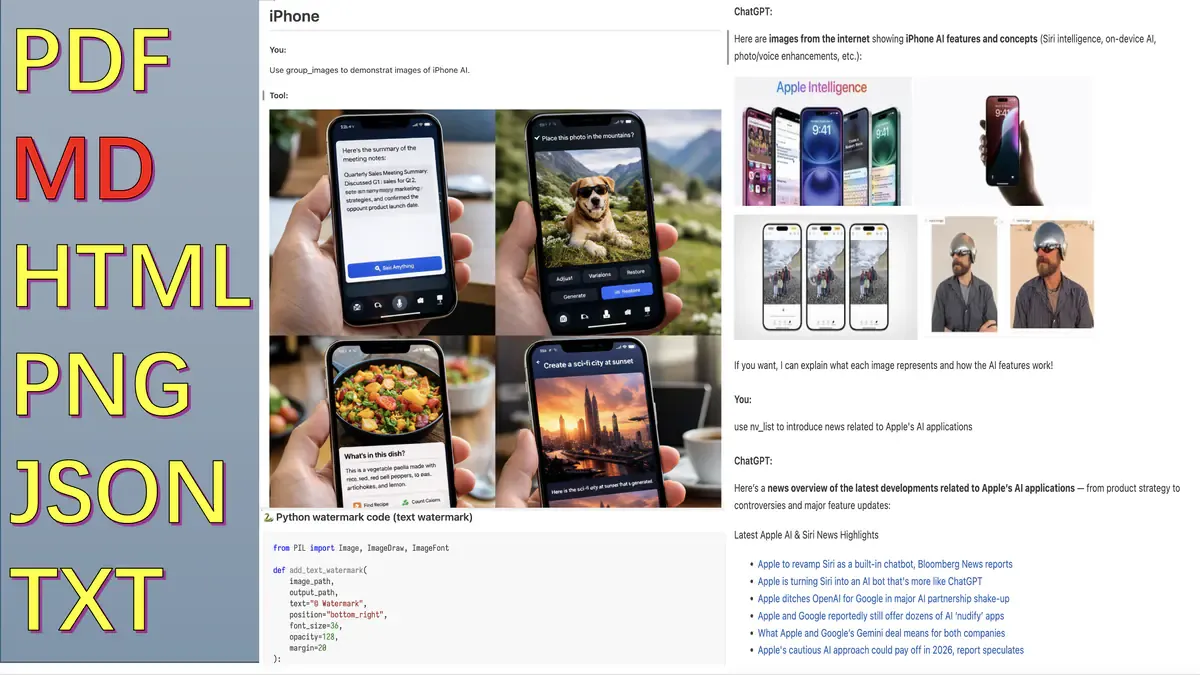
Headings, code blocks, and tables remain consistent for docs and CMS reuse.
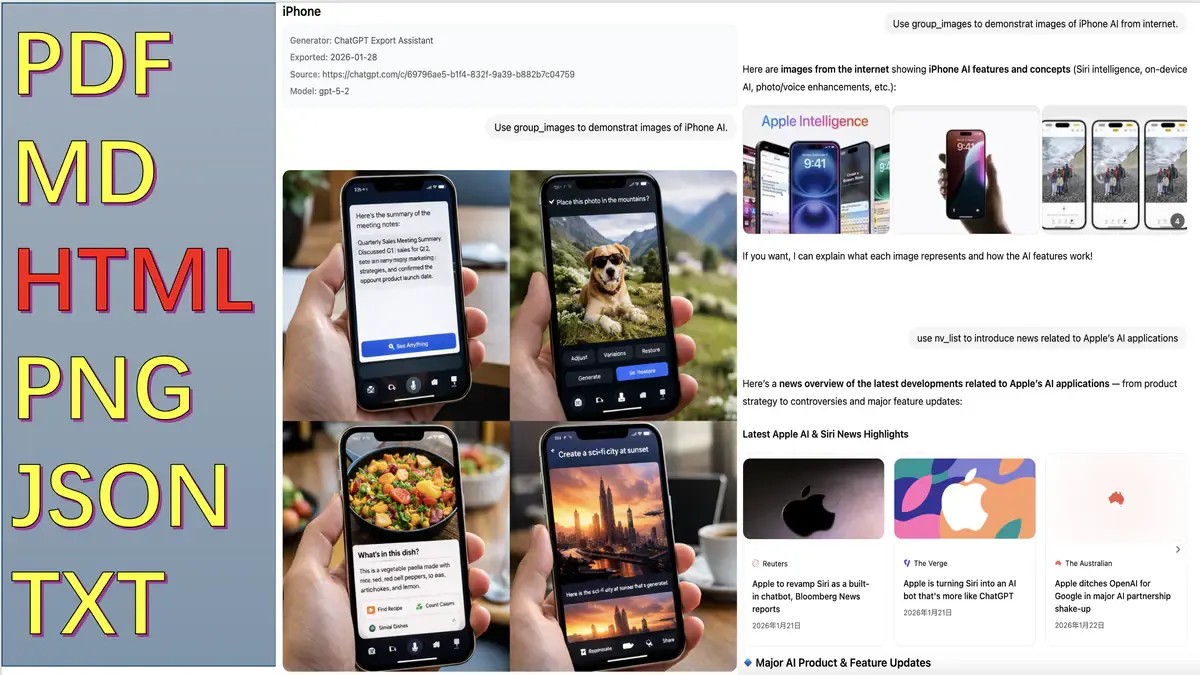
JSON/TXT outputs stay stable for scripting, analysis, and pipeline ingestion.
Choose the conversation, choose the scope, export the format your next tool actually needs.
Go to the ChatGPT thread you want to archive, share, or transform.
Current Q&A, selected Q&A, full chat, or batch export depending on delivery intent.
Generate PDF, HTML, Markdown, JSON, PNG, or TXT and ship it immediately.
Start free for everyday export. Upgrade once when you need batch export plus watermark and presentation controls.
$0 USD
Core features always available
$9.99 USD
One-time purchase
Unlock current Pro feature set.
Quick answers to common questions
Possible causes and solutions:
This is usually caused by missing fonts. Please try:
Large conversations with many PNGs can be slow. Optimization suggestions:
Answer: No for exported conversation content.
Privacy commitment:
Permissions explained: tabs (open/check related pages), storage (save settings/session), identity (Google OAuth), scripting (content script reinjection and local font bridge)
Recommended workflow:
Note: Exporting many conversations may take a few minutes. The browser may prompt multiple file downloads; please allow it.
You can report issues through the extension Feedback entry (GitHub account required), or leave feedback on the Chrome Web Store page. The developer will follow up as soon as possible.